Play Your First Song
Now that Listune is in your server, it is time to play some music.
Using the Play Command
- Join a voice channel in your server.
- Type the following slash command in any text channel:
/play search:your song name or URL- Listune will join your voice channel, search for the track, and start playing it immediately.
You can paste a direct link from YouTube, Spotify, SoundCloud, Apple Music, Deezer, or Tidal. Listune will automatically detect the platform and play the track.
Searching Before Playing
If you want to pick from a list of results instead of playing the first match, use the search command:
/search query:song nameListune will display a dropdown menu with up to 10 matching results. Select the one you want, and it will be added to the queue.
Autocomplete Suggestions
When typing /play, Listune provides real-time autocomplete suggestions as you type. You can select a suggestion directly from the list to play it without finishing your search query.
Controlling Playback
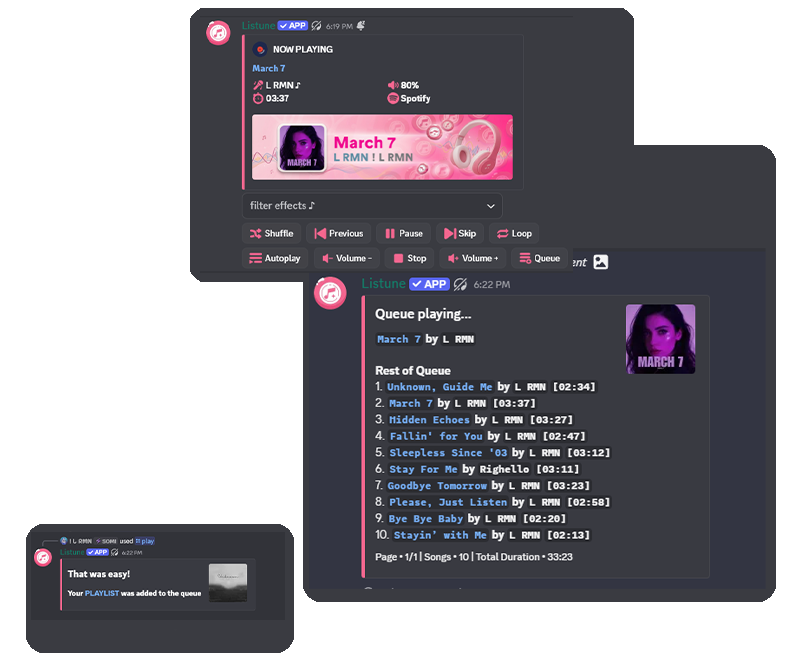
Once music is playing, you can use these basic controls:
| Command | What It Does |
|---|---|
/pause | Pause the current track |
/resume | Resume a paused track |
/skip | Skip to the next song in the queue |
/stop | Stop playback and clear the queue |
/nowplaying | Show details about the currently playing track |
Adding More Songs
Simply use /play again while music is already playing. New tracks are added to the end of the queue and will play in order.
If you want a song to play immediately after the current one, use:
/playnext search:song name or URLThis inserts the track at the front of the queue.
What Comes Next
Now that you know how to play music, explore the Song Request Channel feature to create a dedicated channel for music requests, or check the full Command Reference for everything Listune can do.