Dashboard Guide
Listune includes a web dashboard that lets you control the music player, manage server settings, and view your profile - all from your browser. The dashboard syncs in real time with Discord, so any change you make on the web is reflected immediately in your server.
Accessing the Dashboard
- Visit the Listune website and click Login.
- Sign in with your Discord account. You will be asked to authorize the dashboard to read your server list.
- After logging in, you will see a list of servers where you have Listune installed.
- Click on a server to open its dashboard.
You need to be logged in with a Discord account that has access to the server you want to manage.
Music Player
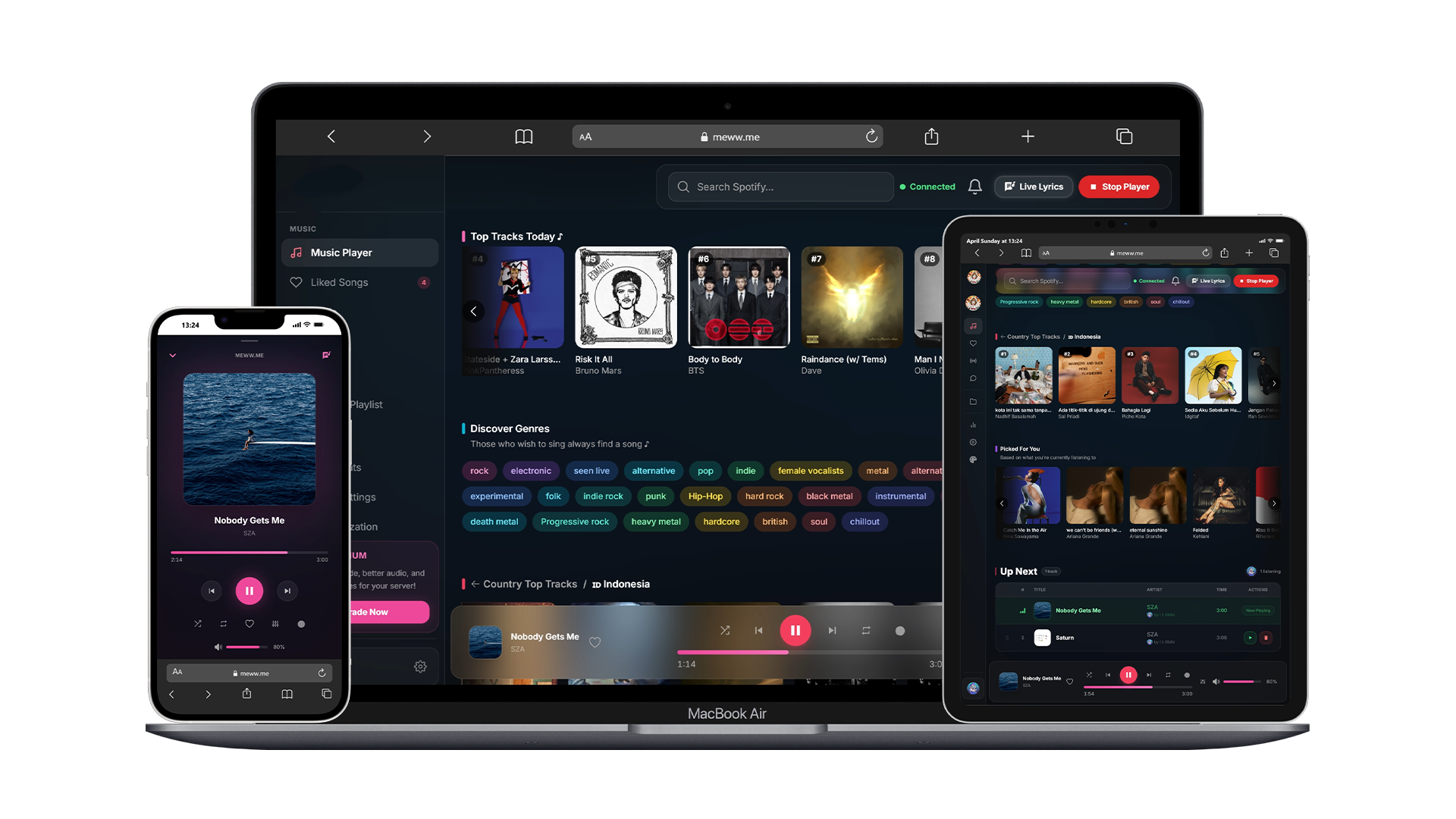
The music player page is the heart of the dashboard. It provides a visual interface to control playback in real time.
Now Playing
The player displays the currently playing track with:
- Track title and artist name
- Album artwork
- A progress bar showing the current position in the song
- The name of the user who requested the track
Playback Controls
The player provides buttons for common playback actions:
| Control | What It Does |
|---|---|
| Play / Pause | Toggle playback |
| Skip | Skip to the next track in the queue |
| Previous | Go back to the previous track |
| Shuffle | Randomize the order of the queue |
| Loop | Cycle between no loop, loop track, and loop queue |
| Volume Slider | Adjust the volume from 0 to 100 |
Queue Management
Below the player, you can see the full queue of upcoming songs. From here you can:
- View all queued tracks with their titles, artists, and durations
- See who requested each track
- Remove individual tracks from the queue
- Watch the queue update in real time as songs are added or removed from Discord
Server Settings
The settings section allows server administrators to configure how Listune behaves in their server. Settings are organized into clear sections.
General Settings
- Language - Change the language Listune uses for responses in your server.
- 24/7 Mode - Keep the bot connected to a voice channel permanently, even when no users are present.
- Control Buttons - Toggle whether now-playing messages include interactive playback buttons.
Player Embed Settings
These settings control the appearance and behavior of the now-playing embed in Discord:
- Filter Menu - Show or hide the audio filter dropdown on the player embed.
- Recommendation Menu - Show or hide the song recommendation menu.
- Button Labels - Show or hide text labels on the playback buttons.
- Music Card - Toggle between a standard embed and a visual music card for now-playing messages.
DJ Role
Configure a DJ role to restrict who can use playback control commands. When enabled, only members with the assigned role (and the server owner) can use commands like skip, pause, volume, and filters.
Song Request Channel
View and manage the dedicated song request channel. If one is set up, the dashboard shows the linked text and voice channels.
Bot Profile Customization
Server administrators can customize the bot's appearance with:
- A custom nickname
- A custom avatar image
- A custom banner image
- A custom bio / about me text
Customization requests are submitted for review and applied once approved.
User Profile
The profile page shows your personal Listune statistics:
- Tracks Played - Total number of songs you have listened to
- Commands Used - Total number of commands you have executed
- Total Listen Time - How long you have spent listening to music
- Liked Songs - Number of songs in your favorites
- Playlists - Number of playlists you have created
- Top Tracks - Your most played songs
- Top Artists - Your most listened-to artists
- Voting History - How many times you have voted for Listune
Global Statistics
The global stats page provides a bird's-eye view of Listune's activity across all servers:
- Total servers and users
- Total songs played
- Most popular tracks and artists across the entire platform
- System uptime and performance metrics
System Status
The status page shows the current health of the bot's infrastructure:
- Bot uptime
- Audio node status and latency
- API response times
- Memory and resource usage
This is useful for checking whether the bot is experiencing any issues if commands are not responding as expected.
Real-Time Sync
The dashboard uses a live WebSocket connection to stay synchronized with Discord. This means:
- When someone adds a song in Discord, it appears in the dashboard queue immediately
- When you adjust the volume on the dashboard, the change is heard in the voice channel instantly
- Play, pause, skip, and other controls are reflected in both directions without delay
No page refresh is needed. The dashboard stays up to date automatically.